You are on a video call. You finish the meeting. You close the laptop. But is the camera really off? Many people assume the LED light means the camera is disabled. They are wrong. Hackers can turn on your webcam without triggering the indicator light.
That is terrifying.
I have spent years working in IT security. I have seen the damage caused by compromised webcams. I have also seen the simple solution that stops most attacks dead. A physical privacy shutter.
This guide covers everything you need to know about secure enterprise webcam privacy shutters. You will learn why they matter. How to fix the dreaded "privacy shutter detected" error. And which products actually work.
Let us get started.
Why Enterprise Webcams Need Physical Shutters?
Software-Only Protection Is Not Enough
Most laptops have a camera LED. It turns on when the camera is active. But researchers proved years ago that malware can bypass this light. The camera records. The LED stays dark.
Read Also: Enterprise Conference Room Hardware Setup Costs: The 2026 Budget Guide
This is not theoretical. Camera hacking, or "camfecting," has become a structured tactic. Attackers use unsigned firmware and generic drivers. They install silent video taps. They watch you without your knowledge.
Software solutions help. Antivirus tools like Avast Webcam Shield block untrusted apps. ESET offers similar protection. But software has limits. A determined attacker can disable it.
The Hardware Advantage
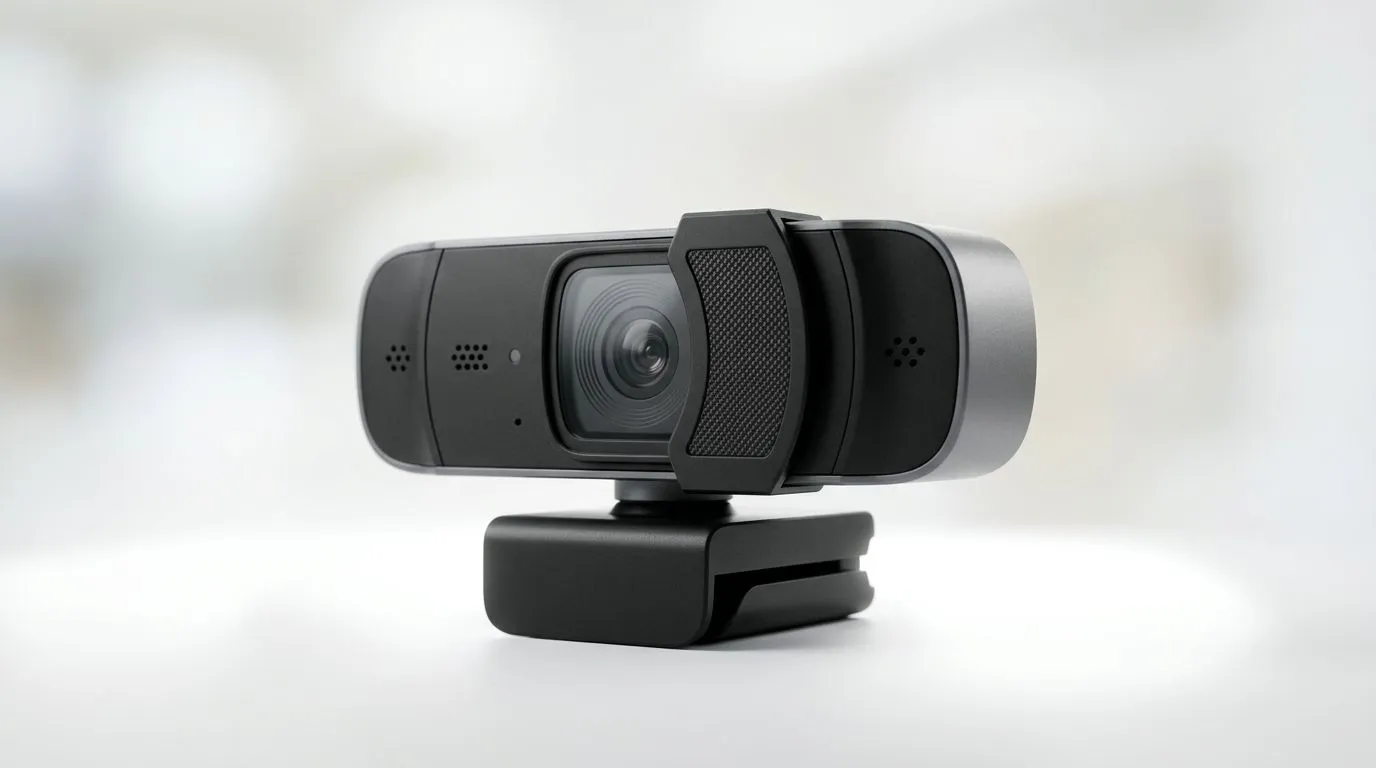
A physical shutter is different. It blocks the lens completely. No software can override it. It is a mechanical kill switch.
Enterprise security audits now treat software-only privacy toggles as convenience features. Physical shutters provide a visible, verifiable barrier. That is why many organizations require them.
I once worked with a financial services firm. They had a strict policy. Every laptop needed a built-in shutter. No exceptions. They had been targeted before. They were not taking chances again.
Common Enterprise Webcams with Privacy Shutters
Logitech C925e Business Webcam
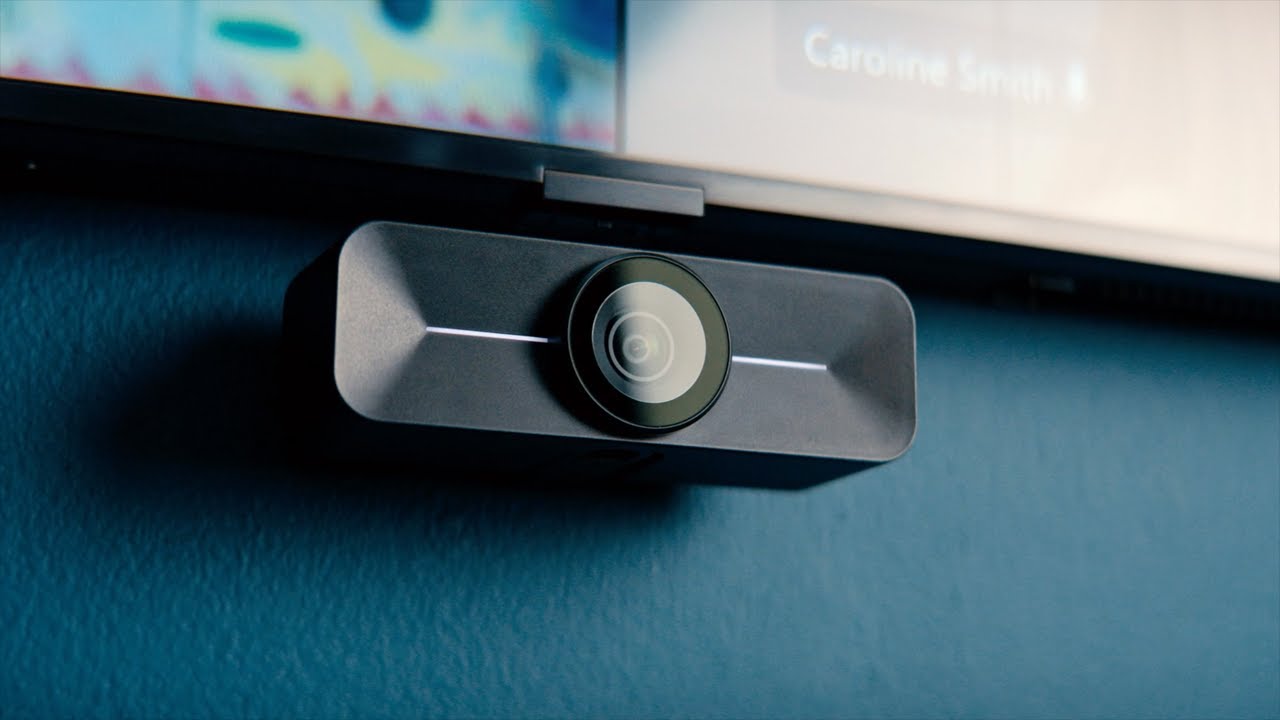
This is a workhorse. It delivers 1080p HD video with autofocus. The privacy shutter sits on top. Slide it left to open. Slide it right to close. The lens turns white when covered.
Many enterprise security protocols require this exact feature. The C925e also has dual microphones and an LED activity light.
Best for: Standard office environments. People who need reliable, no-nonsense security.
Not best for: 4K video needs. The C925e stops at 1080p.
Cisco Desk Camera 4K
Cisco builds this for serious video conferencing. It supports Webex, Microsoft Teams, Zoom, and more. The privacy shutter turns off the video stream and blocks the lens.
The camera also supports Windows Hello for secure login. You get 4K Ultra HD video and noise-canceling microphones.
Best for: Executive offices. Conference rooms. Anyone using Webex as their primary platform.
Not best for: Budget-conscious buyers. Cisco products cost more than consumer alternatives.
Logitech MX Brio 705 for Business
This is Logitech's premium offering. It features a Sony sensor, HDR, and AI-powered framing. The physical privacy shutter is integrated. It is certified for all major meeting platforms.
You Must Also Like: Why Enterprise Cybersecurity Spending Is Surging in 2026?
The Brio 705 uses recycled materials. 82% post-consumer recycled plastic. Low-carbon aluminum.
Best for: Professionals who need top-tier video quality. Hybrid workers who want AI features.
Not best for: Basic use cases. The features are overkill if you just need a simple webcam.
Dell SafeShutter
Dell created something unique. The SafeShutter is an automatic webcam shutter. It opens when you join a video call. It closes when you leave. No manual sliding required.
This is convenient. But it also raises privacy questions. The shutter knows when you are on a call. It syncs with your conferencing apps.
Best for: Dell laptop users. People who want automation over manual control.
Not best for: Privacy purists. Some prefer a manual shutter they control directly.
The "Privacy Shutter Detected" Error: What It Means?
You open Google Meet. You see a message: "Camera might be blocked. Check your camera's privacy switch". Or maybe you see a gray camera icon with a slash through it.
This is the "privacy shutter detected" error. It means your system knows a shutter exists. But the shutter is closed. The camera cannot see anything.
Many users panic. They think their webcam is broken. It is not. The shutter is doing its job.
I have seen this happen dozens of times. A colleague once spent an hour troubleshooting. He reinstalled drivers. He rebooted three times. Then he noticed the tiny slider above his camera. He slid it open. Problem solved.
Privacy Shutter Detected: How to Fix It?
Step 1: Check for a Physical Slider
Look at the top edge of your laptop. Near the camera lens. Do you see a small switch? A tiny slider? Slide it to the other side.
Many people miss this. The slider can be very small. It might not be marked. Run your finger across the top of the screen. Feel for a bump or a switch.
Step 2: Look for a Keyboard Shortcut
Some laptops use function keys. Look at F1 through F12. Do any have a camera icon? Press that key. Or press Fn plus that key.
Common combinations include Fn+F6, Fn+F8, and Fn+F10. Try them all. One of them will toggle the shutter.
Step 3: Check Your Camera App
Open the Windows Camera app. Type "Camera" in the search bar. Can you see yourself? If not, the shutter is still closed.
Step 4: Check Windows Privacy Settings
Go to Settings → Privacy & security → Camera. Ensure "Camera access" is turned on. Also check "Let apps access your camera".
Step 5: Check Your Browser Settings
In Google Chrome: Click the three dots. Go to Settings → Privacy and security → Site settings → Camera. Make sure Google Meet is under "Allowed".
In Firefox: Click the lock icon in the address bar. Go to Permissions. Ensure camera access is allowed.
Step 6: Restart Your Device
Sometimes a simple restart fixes everything. The system resets. The shutter driver reloads.
Step 7: Update or Reinstall Drivers
If nothing else works, update your camera drivers. Go to your laptop manufacturer's support page. Download the latest webcam driver.
How to Choose the Right Enterprise Webcam Shutter?
Built-In vs. External
Built-in shutters are part of the laptop. HP EliteBooks have them. Dell Latitudes offer them. Lenovo ThinkPads include them.
External shutters come with standalone webcams. Logitech, Cisco, and others include them.
Built-in is convenient. External often offers better video quality.
Manual vs. Automatic
Manual shutters require a physical slide. You control them directly. This is the most secure option.
Automatic shutters open and close based on software. Dell's SafeShutter is an example. These are convenient but less private.
What About Mobile Webcam Covers?
You can buy stick-on covers for phones and tablets. They slide open and closed. They work well. But they are not enterprise-grade. They can fall off. They can leave residue.
For enterprise use, buy a proper webcam with an integrated shutter.
Enterprise Best Practices for Webcam Privacy
Standardize on One Model
Choose one webcam model for your entire organization. This simplifies support. It ensures consistency.
Enable Firmware Updates
Update webcam firmware regularly. Manufacturers patch security holes. Stay current.
Use Endpoint Management
Treat webcams like any other endpoint. Track them. Inventory them. Monitor them.
Train Your Employees
Teach staff about privacy shutters. Show them how to open and close them. Explain why it matters.
I once ran a training session. Half the attendees did not know their laptops had shutters. They had been using tape instead. Tape works, but a shutter is better.
Combine Hardware and Software
Use both. A physical shutter blocks the lens. Software like Avast Webcam Shield blocks unauthorized access. Together, they provide layered security.
Final Thoughts
Secure enterprise webcam privacy shutters are not optional. They are essential. Camfecting is real. Hackers are sophisticated. Physical protection is your best defense.
The "privacy shutter detected" error is frustrating. But it is also a sign that your security is working. The shutter is doing its job. Open it when you need the camera. Close it when you do not.
Choose a webcam with a built-in shutter. Standardize on one model. Train your team. Update firmware regularly.
Your privacy is worth the effort.
Common Questions About Enterprise Webcam Privacy Shutters
Can a hacker bypass a physical shutter?
No. A physical shutter blocks the lens. No software can override it. It is the most secure protection available.
Why does Google Meet say "privacy shutter detected"?
Google Meet detects that your camera is blocked. It asks you to check your shutter. Open the shutter to fix the problem.
Do all business laptops have privacy shutters?
No. Many newer models do. But older laptops often lack them. Check your device before buying.
What is a hardware kill switch?
A kill switch disconnects power to the camera. It is even more secure than a shutter. Some enterprise webcams offer this feature.
Is tape a good alternative?
Tape works in a pinch. But it can leave residue. It can damage the lens. A proper shutter is better.