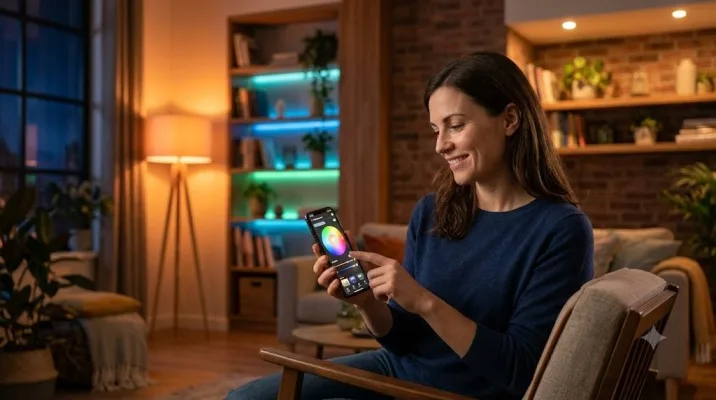
How to control smart lights is the first question every new smart home owner asks. I've tested six brands of smart bulbs across both Alexa and Google Home over the past year.
Some setups took three minutes. Others took three hours of frustration. The difference came down to one thing: the app the bulb connects to first. Every smart light needs its native app before voice assistants can see it.
Skip that step and you'll waste an evening troubleshooting devices that never appear. This guide walks through the exact setup process I used, the mistakes that cost me time, and which system works better for different homes.
Smart Light Bulbs vs Smart WIFI Light Switch: What I Learned the Hard Way?
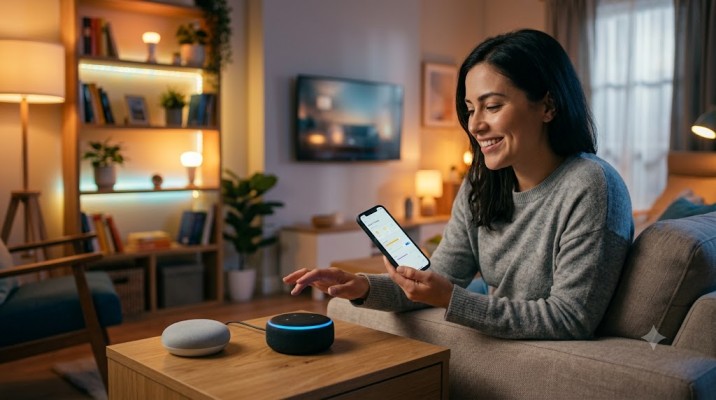
Most people start with smart bulbs. I did too. Then I learned about smart switches.
Read Also: How to Use Compact Smart Plugs to Automate Vintage Electronics?
Smart light bulbs replace your existing bulbs. They screw into standard sockets. The Wipro 9W Wi-Fi LED Smart Bulb supports 16 million colors and works with both Alexa and Google Assistant. Setup takes five minutes. You control each bulb individually.
Smart WIFI light switch replaces the wall switch itself. One switch controls all bulbs on that circuit. You don't need smart bulbs anymore. Just regular LEDs.
Here's my honest take. Bulbs work great for lamps and single fixtures. Switches make more sense for ceiling lights with multiple bulbs. I started with bulbs. Now I'm slowly switching to smart switches for rooms where I want simple on-off control without replacing six bulbs.
The downside of switches? Installation requires basic electrical knowledge. If you're not comfortable working with live wires, hire an electrician. Bulbs are plug-and-play. Switches are not.
How to Set Up Smart Light Bulbs With Alexa?
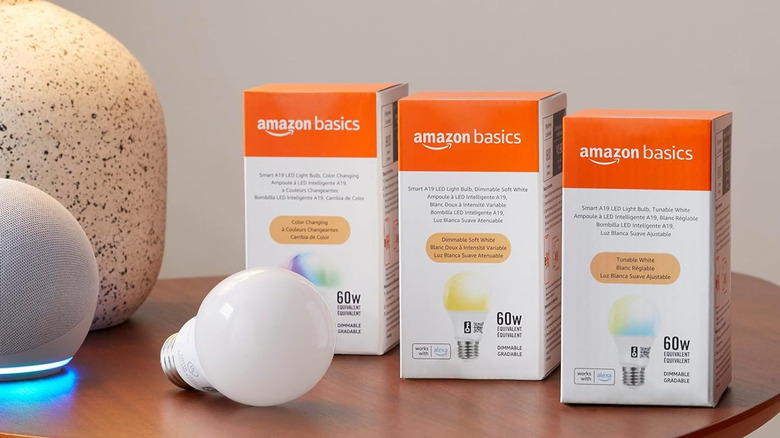
Alexa setup follows a consistent pattern across brands. I've done this with Wipro, Tuya, and Consciot bulbs. The steps barely change.
Step 1: Connect the Bulb to Its Native App First
This is the step everyone skips. Don't do that.
Install the bulb in a socket. Power it on. Download the manufacturer's app. Wipro uses Wipro Next Smart Home. Tuya bulbs use Tuya Smart or Smart Life. Consciot uses AiDot.
The app will guide you through Wi-Fi pairing. Here's the critical part: use 2.4GHz Wi-Fi only. Smart bulbs don't support 5GHz networks. I spent forty minutes trying to pair a bulb before realizing my phone was on 5GHz.
Most bulbs enter pairing mode automatically. If not, toggle the switch off and on three to six times quickly. The bulb flashes to confirm it's ready.
Step 2: Link the Skill in Alexa
Open the Alexa app. Tap More in the bottom right. Select Skills & Games. Search for your bulb brand's skill. For Wipro, search "Wipro Next Smart Home".
You Must Also Like: Ultimate Guide to Water Leak Sensors for Smart Homes
Tap Enable to Use. Sign in with the same account you created in the native app. Authorize the connection.
Step 3: Discover Devices
After linking, Alexa needs to find your bulbs. Say "Alexa, discover devices" or tap Discover Devices in the app. Wait thirty seconds. Your bulbs should appear.
If they don't show up, check these three things. Your phone must be on 2.4GHz Wi-Fi. The bulb must be powered on. The skill must be properly linked.
Step 4: Rename Devices and Test
Rename each bulb to something Alexa understands. "Bedroom Light" works. "RGB-Desk-v2" fails. Alexa struggles with numbers, abbreviations, and special characters.
Test basic commands first. "Alexa, turn on Bedroom Light." "Alexa, set Bedroom Light to 50 percent." "Alexa, set Bedroom Light to blue."
How to Set Up Smart Light Bulbs With Google Home?
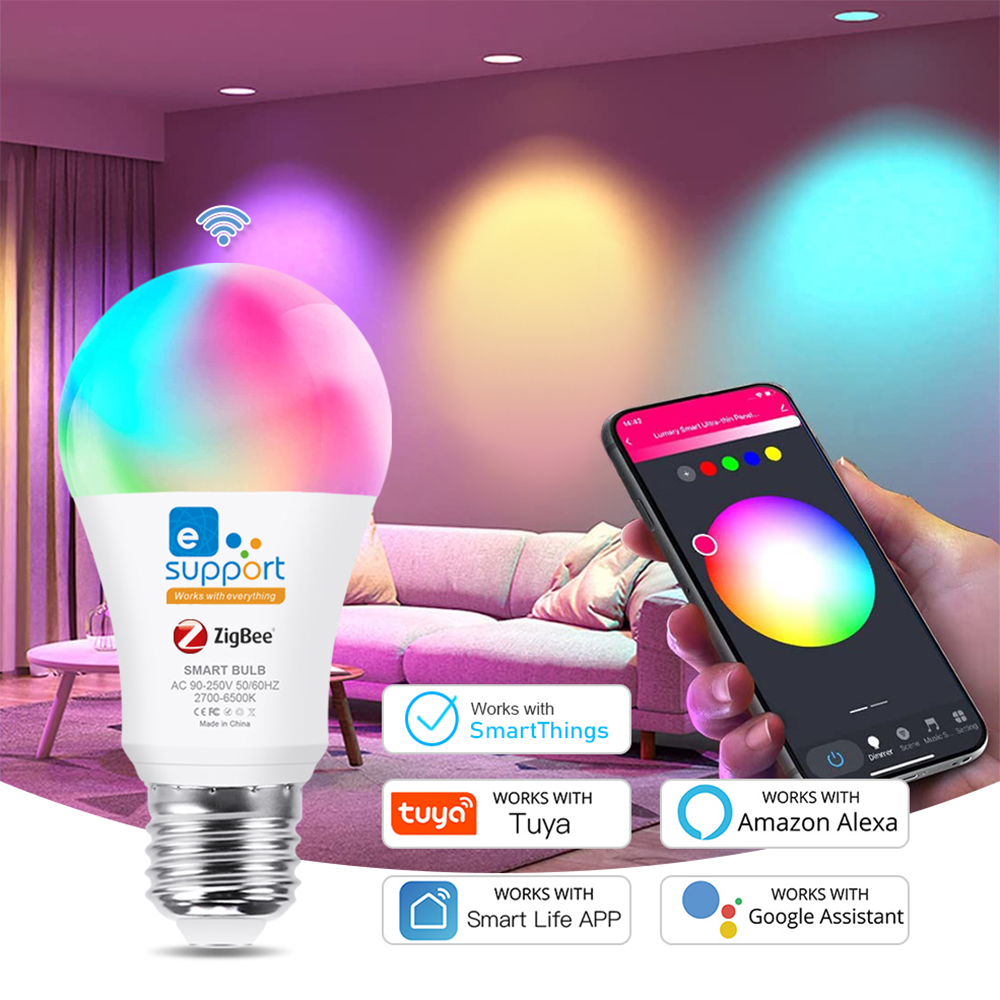
Google Home setup follows a similar path. The terminology changes slightly. The frustration level stays the same if you skip steps.
Step 1: Native App First (Same Rule Applies)
Connect your bulb to its manufacturer app before touching Google Home. This step doesn't change.
Step 2: Link the Service
Open the Google Home app. Tap the + icon. Select Set up device. Choose Works with Google Home.
Search for your bulb brand. For Wipro, type "Wipro Next Smart Home." Sign in with your app credentials. Authorize the connection.
Step 3: Assign Devices to Rooms
Google Home organizes devices by room. Assign each bulb to the correct room. This matters for voice commands. "Hey Google, turn on the kitchen lights" only works if you've assigned those bulbs to the Kitchen room.
Step 4: Test Natural Language Commands
Google Assistant handles natural phrasing better than Alexa. I can say "Hey Google, make the living room lights warm" and it works. Alexa requires more structured commands.
Test these commands:
-
"Hey Google, turn on the bedroom light."
-
"Hey Google, set the brightness to 50 percent."
-
"Hey Google, change the light to warm white."
Smart Home Light Control System: Routines That Actually Save Time
Voice commands are convenient. Routines change how you live. I use these daily.
Morning routine: Lights gradually brighten from 1% to 80% over 15 minutes. Simulates sunrise. Better than any alarm clock.
Movie night: One command dims the living room to 20%, switches to warm white, and turns off the kitchen lights.
Away mode: Randomly toggles lights between 7 PM and 11 PM when I travel. Costs nothing. Deters burglars.
Setting up routines differs between assistants. Alexa uses Routines under the More menu. Google Home uses Routines on the main screen. Both let you trigger actions by time, voice, or device state.
One limitation I hit: Google Home routines sometimes fail to trigger if your internet drops. The command never reaches the cloud. Lights stay in their last state . Alexa has the same cloud dependency. Neither system works offline without a local hub.
Common Problems and How I Fixed Them
These issues cost me hours. Learn from my mistakes.
Bulb Won't Connect to Wi-Fi
Check your Wi-Fi band. 2.4GHz only. This is the number one cause of connection failure .
Reset the bulb. Most bulbs reset by toggling power off and on five times. The bulb flashes to confirm reset mode.
Move closer to the router. During initial pairing, distance matters. I paired a stubborn bulb by holding it two feet from the router.
Alexa or Google Can't Find the Bulb
Check the skill link. Open the Alexa or Google Home app. Verify the skill shows as "Linked." Re-link if unsure.
Rename the device. Google and Alexa both struggle with unusual names. Change "RGB-Desk-v2" to "Desk Light".
Restart everything. Reboot your router. Power cycle the bulb. Restart your phone. This fixes most discovery issues.
Voice Commands Work Sometimes, Not Always
Check device grouping. Commands like "turn off all lights" only work if devices share a room or group assignment. Assign bulbs to the correct rooms.
Check for command conflicts. Alexa routines with two steps sometimes fail without a delay between them. Add a 1-second pause between actions.
Which System Should You Choose?
Both work. Both have strengths. The right choice depends on your home.
Choose Alexa if:
-
You want the widest device compatibility
-
You prefer structured, specific commands
-
You already own Echo devices
Choose Google Home if:
-
You want natural language commands
-
You use Android phones
-
You value Google's search integration
Choose both if:
-
You have multiple family members with different preferences
-
You want redundancy when one service has issues
-
You're building a large smart home setup
I run both. Alexa controls the bedroom and office. Google Home handles the living room and kitchen. The overlap hasn't caused problems. Devices linked to both systems respond to either assistant.
The Matter Standard: What Changes in 2026
Matter is the new open standard for smart home devices. It promises one device works with all ecosystems. No more brand-specific apps. No more skill linking.
Google is rolling out Gemini-powered smart home controls in 2026. Natural conversational language. Mood-based automations. Devices that understand context, not just commands.
I've tested one Matter-certified bulb. Setup took ninety seconds. No manufacturer app. No skill linking. Just scan a QR code and assign it to a room.
This is the future. But most devices today still use cloud-to-cloud connections. If you're buying new smart lights in 2026, look for the Matter logo. It saves setup headaches later.
The Final Thoughts
I run twelve smart bulbs across four rooms. Two Wipro bulbs in the bedroom. Four Tuya bulbs in the living room. Six Consciot bulbs in the office and kitchen. If I started over, I'd do three things differently.
Skip the bulbs. Buy smart switches for ceiling lights. Replacing six bulbs every time one dies gets old fast.
Standardize on one brand. Mixing apps creates confusion. My wife still asks which app controls which light.
Wait for Matter. The setup experience is dramatically better. If you can wait six months, do it.
Smart lighting isn't complicated. It's just picky about setup order. Native app first. 2.4GHz Wi-Fi only. Clear device names. Get those three right and everything else falls into place.